Many Windows users find Realtek audio drivers to be quite bothersome, especially those who have custom-built PCs or high-end motherboards. The sound quality isn’t the problem; it’s how hard it is to set up the drivers. PCs used to use High Definition Audio drivers, which came as a single package that comprised the driver and the Realtek HD Audio Manager. The Universal Audio Drivers (UAD) or DCH drivers is added after the Microsoft switched to the Universal Windows Platform (UWP). These newest drivers are smaller and need the standalone Realtek Audio Console program from the Microsoft Store to control sound. The problem is that a lot of motherboard makers don’t update these drivers anymore, thus users are stuck with old versions or can’t reinstall the console app correctly.
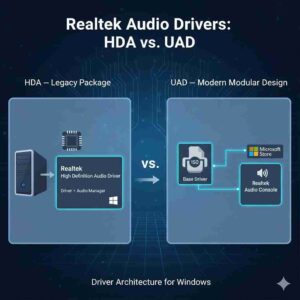
The Driver Divide: HDA vs. UAD
HDA and UAD are not simply different names; they are completely different ways that Windows handles drivers. Drivers for UAD in the Present are smaller and will work with all versions of Windows. They simply have the basic driver files. The Realtek Audio Console from the Microsoft Store takes care of the control choices, such as sound effects and equalizer settings.
Problems with Updates and Availability
The UAD system relies a lot on motherboard makers and the Microsoft Store, which can cause problems.
- Vendor Abandonment: Some companies stop releasing updates, which means that users are stuck with old or generic drivers that limit audio functionality.
- Failed Installations: The companion app might not operate even if customers install a newer generic UAD driver. This is because it needs hardware IDs that only certified vendor drivers can offer. This leaves the system with basic audio that can’t be changed.
The Revival: Fixes and Workarounds from the Community
Tech fans have come up with ingenious ways to bring “dead” UAD systems back to life in order to fix these problems.
- Modded Drivers: Users change the legitimate Realtek UAD drivers to add their device IDs. This makes Windows think they are real and lets them reinstall and use the Realtek Audio Console again.
- Changing HDA to UAD: Some people with older PCs uninstall old drivers and install newer UAD versions to get access to more powerful capabilities. These modifications are a little complicated, but they can give you full control over the sound and make things work better.
Ending Statement
The troubles with Realtek UAD drivers show how a modern driver paradigm can generate problems when manufacturers don’t always offer the same level of support. Even if there have been problems, the Windows community keeps making reliable fixes. Users may get their Realtek audio systems back to life and fully customize their sound by using hacked drivers and carefully reinstalling them.
Work smarter, play better — discover what’s new in Windows!