Win 10

Where Productivity Meets Simplicity

Windows Updates Benefits Risks and Best Practices

Featured Blog

Windows Services Startup Management and Troubleshooting

Windows Services are background processes that handle essential system operations, application functions, and network tasks. They typically run without direct user interaction, starting automatically with the operating system or when needed by an application. Understanding how to manage and troubleshoot services is crucial for maintaining system stability and performance. Windows Services are the hidden workforce […]

The Role of Windows Task Manager

The Windows Task Manager is a built-in utility that acts as the control center for monitoring and managing the system’s processes, performance, and applications. It is essential for troubleshooting system slowdowns, identifying resource-heavy programs, and managing startup behavior. 1. Monitoring System Performance Provides real-time data on CPU, memory, disk, network, and GPU usage. Helps identify […]

Windows Task Manager Functions and Advanced Usage

The Windows Task Manager is a powerful built-in utility that provides real-time information about system performance, running processes, and resource usage. While many users only use it to “end a task,” it offers far more advanced features for monitoring, troubleshooting, and optimizing Windows. https://win10.guru

User Account Control and Permissions in Windows

User Account Control (UAC) and permissions are security mechanisms in Windows designed to prevent unauthorized changes to your system. They act as gatekeepers—ensuring that only trusted applications and authorized users can make changes that could affect the operating system or other users. https://win10.guru

Understanding the Windows Registry and Its Role

The Windows Registry is a critical database that stores configuration settings and options for the Microsoft Windows operating system. It acts like the brain of Windows—keeping track of system preferences, application settings, user profiles, and hardware configurations. Understanding how it works is essential for troubleshooting, customization, and advanced system administration. https://win10.guru


Read More

Why an Optimized System Matters for MMR Service Performance

Many online games today use ranking systems to match players with others at a similar skill level. One of the most common systems is MMR, which stands for Matchmaking Rating. MMR affects who you play with, the level of competition you face, and how fast you move up or down in ranked matches. Players who want better results often focus on mechanics, teamwork, and strategy, but many overlook the role of their Windows operating system.

A poorly optimized operating system can create lag, crashes, delays, and unstable performance. These issues can hurt gameplay, especially during important ranked matches. Even a skilled player may struggle if their computer freezes during a team fight or drops frames during fast movement. This is why players who use MMR service support or who want to improve their ranking should pay attention to system performance.

Windows is one of the most popular operating systems for gaming. It supports a wide range of games, graphics cards, gaming tools, and communication apps. However, simply installing Windows is not enough. The system needs proper maintenance and optimization to perform well in competitive gaming environments.

An optimized Windows system helps games run smoothly. It improves loading times, reduces unnecessary background activity, and supports stable internet performance. When the system is clean and properly configured, players can focus more on gameplay and less on technical issues.

How Windows Performance Affects Online Ranked Matches

Every online game depends on fast communication between your computer and the game server. When your Windows operating system is overloaded or unstable, that communication may slow down. This can affect movement, aiming, reaction time, and match consistency.

One common problem is background applications. Many programs continue running even when they are not being used. These apps consume memory, processor power, and internet bandwidth. Some examples include update services, cloud storage apps, video software, and unused browser tabs. During ranked matches, these programs can reduce game performance without the player noticing immediately.

Players who use MMR service support often aim for stable and consistent matches. Consistency becomes harder when the system is cluttered. Random frame drops or system slowdowns can interrupt important moments during gameplay. This is especially noticeable in competitive shooters, strategy games, and multiplayer battle arenas where reaction time matters.

Storage space also affects performance. A nearly full drive can slow down loading times and reduce system responsiveness. Games today require large amounts of storage. Windows also needs free space for temporary files and updates. Keeping enough available storage helps the system operate more smoothly.

Another important factor is system updates. Windows regularly releases updates for security, stability, and compatibility. Some updates improve gaming performance, while others fix problems related to drivers or hardware support. Ignoring updates for long periods can lead to crashes or compatibility issues with newer games.

Graphics drivers are closely connected to Windows performance. Drivers allow the graphics card to communicate with the operating system. Outdated drivers can cause visual bugs, poor frame rates, or game crashes. Players who want reliable ranked performance should regularly check for updated graphics drivers from trusted sources.

Windows settings also affect gaming experience. Features like Game Mode, graphics performance settings, and power managementcan influence how games run. Many players use balanced power settings by default, but switching to performance-focused settings can help maintain smoother gameplay during long sessions.

Internet performance is another area affected by the operating system. Windows controls network activity, updates, and bandwidth usage. If downloads or updates begin during a match, ping spikes may occur. High ping can delay actions and create frustrating gameplay experiences. Players should disable unnecessary downloads while gaming to avoid interruptions.

Security tools also play a role. Antivirus software protects the system, but some programs run heavy scans in the background. These scans can reduce game performance. Instead of disabling security completely, players should adjust schedules so scans happen outside gaming hours.

Many competitive players also customize Windows for lower latency. They disable visual effects, remove startup apps, and optimize system settings for gaming performance. These adjustments help the computer focus more resources on the game itself.

A stable Windows system is especially important for players climbing ranked ladders. MMR progression often depends on consistency over many matches. Small technical problems repeated over time can lead to lost games and lower rankings. This is why system optimization matters just as much as practice and teamwork.

Important Windows Settings and Tools for Better MMR Service Support

Players do not always need expensive hardware upgrades to improve performance. In many cases, proper Windows optimization can already create noticeable improvements. Several built-in tools and settings can help games run more smoothly.

Game Mode is one of the first features players should check. Windows Game Mode helps prioritize gaming processes by reducing background activity. It allocates more system resources to the active game. While the improvement may vary depending on the system, many players notice more stable gameplay after enabling it.

Startup management is another important step. Many apps automatically launch when Windows starts. Over time, this can slow down boot times and consume resources in the background. The Task Manager allows users to disable unnecessary startup programs. Keeping startup apps minimal helps the system run cleaner.

Disk cleanup is also useful. Temporary files, update leftovers, and unused data can fill storage space. Windows includes cleanup tools that help remove unnecessary files safely. A cleaner drive often improves loading speed and general responsiveness.

Players should also monitor system temperatures. Overheating can reduce performance because the system automatically lowers speed to prevent damage. Dust buildup, poor airflow, or blocked cooling fans can increase heat. Cleaning the computer regularly and ensuring proper ventilation helps maintain stable performance during gaming sessions.

Graphics settings inside Windows can also be adjusted. Players can assign high-performance mode to specific games. This tells the system to prioritize the game over less important tasks. Some players also disable unnecessary animations and transparency effects to reduce system load.

Internet optimization is another major focus for ranked gaming. Wired connections are usually more stable than Wi-Fi. Ethernet connections reduce interference and often provide lower latency. If Wi-Fi must be used, the router should be placed near the gaming device, and other heavy internet activities should be limited during matches.

Power settings are often overlooked. Many computers use balanced or power-saving modes by default. These settings may reduce processor speed to save energy. Switching to High Performance mode allows the system to maintain stronger performance during demanding games.

Windows Defender and other security tools should also be configured properly. Excluding game folders from real-time scanning can sometimes reduce interruptions during gameplay. However, players should still maintain good security habits and avoid downloading suspicious files or unofficial software.

Players involved in MMR service improvement also benefit from system monitoring tools. Programs that display CPU usage, GPU usage, frame rate, and temperatures help identify performance issues. If frame rates suddenly drop, monitoring tools can reveal whether the problem comes from overheating, memory limits, or background processes.

Communication apps are another part of ranked gaming. Team-based games rely heavily on voice coordination. Windows audio settings should be configured properly to avoid microphone problems, static noise, or delayed communication. Clear communication helps teams react faster and coordinate more effectively.

Some players also use recording software or live streaming tools. These programs can consume significant resources if not configured correctly. Lower recording quality or hardware encoding can reduce the impact on game performance. Players should test settings before competitive matches to avoid unexpected lag.

Backup and recovery tools are also important. System crashes or corrupted files can interrupt gaming schedules. Keeping backups of important settings and files makes recovery easier if problems occur. Windows offers restore points and recovery options that can help repair issues without fully reinstalling the operating system.

Long-Term Windows Maintenance for Ranked Gaming Success

Improving ranked performance is not only about quick fixes. Long-term maintenance is necessary for stable gaming experiences. Players who regularly maintain their Windows systems often experience fewer technical problems and more consistent match quality.

Regular updates are one of the simplest habits to follow. Windows updates, graphics drivers, and game patches all contribute to better compatibility and performance. Delaying updates for too long may create issues with newer game versions or online services.

Cleaning unused programs is also important. Over time, many systems collect apps that are no longer needed. Some of these apps continue running services in the background. Removing unnecessary software helps free storage space and system resources.

Players should also restart their systems regularly. Many users leave their computers running for long periods without rebooting. Restarting clears temporary memory usage and refreshes system processes. This simple habit can improve stability before gaming sessions.

Malware and suspicious software should be avoided completely. Some unofficial tools promise gaming advantages but may contain harmful files. Malware can slow down systems, damage files, or compromise personal information. Players should only download software from trusted sources.

A stable gaming routine also helps maintain system health. Long gaming sessions without breaks can increase system temperatures and reduce focus. Taking short breaks allows both the player and the computer to cool down. This can improve long-term performance and comfort.

Players who rely on MMR service support should also monitor their gameplay habits. Technical improvements alone will not guarantee ranking progress. Players still need to improve map awareness, communication, positioning, and game knowledge. Windows optimization simply removes technical barriers that can hold players back.

It is also useful to test settings gradually. Making too many changes at once can create confusion. Players should adjust one setting at a time and observe the results. This helps identify which changes improve performance and which do not.

Gaming communities often share optimization guides, but not all advice is reliable. Some extreme tweaks may create system instability. Players should focus on safe and proven methods instead of risky modifications. Stability is more important than chasing tiny performance gains.

Windows optimization also supports confidence during competitive matches. Players perform better when they trust their system. Constant worry about lag, crashes, or freezing can create stress and distraction. A stable system allows players to focus fully on decision-making and teamwork.

Modern online games continue becoming more demanding. Future updates often require better optimization and stronger system management. Learning how to maintain Windows properly is becoming an important skill for competitive gamers.

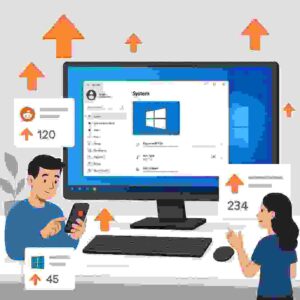
How to Get More Upvotes on Reddit Posts About the Windows Operating System

Reddit is one of the largest discussion platforms on the internet. Millions of users visit the site every day to talk about technology, gaming, software, and operating systems. The Windows operating system is one of the most discussed topics in many tech communities. Subreddits related to Windows often include users who share troubleshooting tips, software reviews, updates, and productivity advice.

Getting upvotes on Reddit posts can help your content reach a wider audience. Upvotes increase visibility because Reddit’s ranking system promotes posts that receive positive engagement. When a post gains early upvotes, it has a better chance of appearing higher in subreddit feeds. This means more users can see the content and interact with it.

However, getting upvotes is not just about posting frequently. Reddit users value helpful information and authentic discussions. If you want to get more upvotes on Reddit posts about the Windows operating system, you must focus on quality, timing, and relevance. When posts provide useful knowledge or solutions, they naturally attract engagement.

Create Helpful and Relevant Windows Content

The first step to getting more upvotes is posting useful information. Windows users often visit Reddit to solve problems or learn something new. This means helpful posts perform better than generic or promotional ones.

One effective strategy is sharing troubleshooting guides. Many people search for answers when they face issues with updates, drivers, or system performance. If you post a clear solution for a common Windows problem, other users are likely to upvote it because it helps them. For example, explaining how to fix slow startup issues or how to manage background processes can attract positive responses.

Another strong approach is sharing tips that improve productivity. Windows users enjoy learning about features that make their work easier. Simple guides about keyboard shortcuts, task manager tricks, or hidden Windows tools often receive attention. These posts are easy to read and provide immediate value.

Comparison posts also work well in Windows communities. Users like discussing different versions of the operating system. A post comparing Windows 10 and Windows 11 features can create conversation. Discussions about performance improvements, interface changes, or compatibility issues often receive many comments and upvotes.

Real experiences can also attract engagement. If you recently upgraded your system or solved a technical issue, sharing your experience can help others. Personal stories about building a PC, installing Windows, or optimizing performance can make your content feel authentic. Reddit users usually respond well to genuine experiences instead of generic advice.

Use Clear Titles and Engage the Community

A strong title is one of the most important elements of a successful Reddit post. Many users scroll quickly through their feed. If the title is vague or unclear, they will likely ignore the post. Clear titles help readers understand the value of your content immediately.

For example, a title like “Windows problem” does not explain anything useful. A better title could be “How I fixed slow boot time on Windows 11 using startup settings.” This type of title tells readers exactly what they will learn from the post.

Questions can also encourage engagement. Asking something like “What Windows feature improves your productivity the most?” invites users to share their opinions. When people comment on a post, it becomes more visible within the subreddit. This increases the chance of receiving more upvotes.

Posting in the correct subreddit is also important. Reddit has many communities dedicated to Windows topics. Some focus on troubleshooting, while others discuss general technology. Choosing the right community ensures your content reaches the right audience.

You should also follow subreddit rules. Some communities restrict certain types of posts. For example, some subreddits do not allow self-promotion or external links. Ignoring these rules can cause moderators to remove your post. Reading community guidelines before posting can prevent this issue.

Responding to comments is another way to increase engagement. When people see that the author interacts with the community, they are more likely to support the post. Answering questions and thanking users for feedback can create a positive discussion environment.

Improve Post Timing and Maintain Consistency

Timing plays an important role in Reddit engagement. Posting when the community is active increases the chance that users will see your content quickly. Early interaction can help the post move higher in the subreddit ranking.

Technology subreddits often have peak activity during evenings and weekends. Many users browse Reddit after work or during free time. Posting during these periods can increase visibility.

Consistency also helps build a reputation within the community. Users who regularly contribute helpful comments and posts are more likely to gain trust. When people recognize your username as someone who provides useful information, they may be more inclined to upvote your content.

Avoid posting too frequently in a short period. This can make your account appear spammy. Instead, focus on sharing valuable content occasionally. Quality matters more than quantity in Reddit communities.

Another helpful practice is engaging with other posts before publishing your own. Commenting on discussions shows that you are part of the community. It also helps you understand the types of posts that receive the most engagement.

This participation improves your reputation. When users see that you regularly help others with Windows questions, they are more likely to support your posts with upvotes.

Building engagement on Reddit requires patience and genuine participation. By sharing useful Windows operating system insights, writing clear titles, and interacting with the community, you can naturally increase the number of upvotes your posts receive. Instead of focusing only on popularity, focus on helping other users. When your posts provide real value, upvotes usually follow.

Learning about S4HANA Services through the Windows Ecosystem

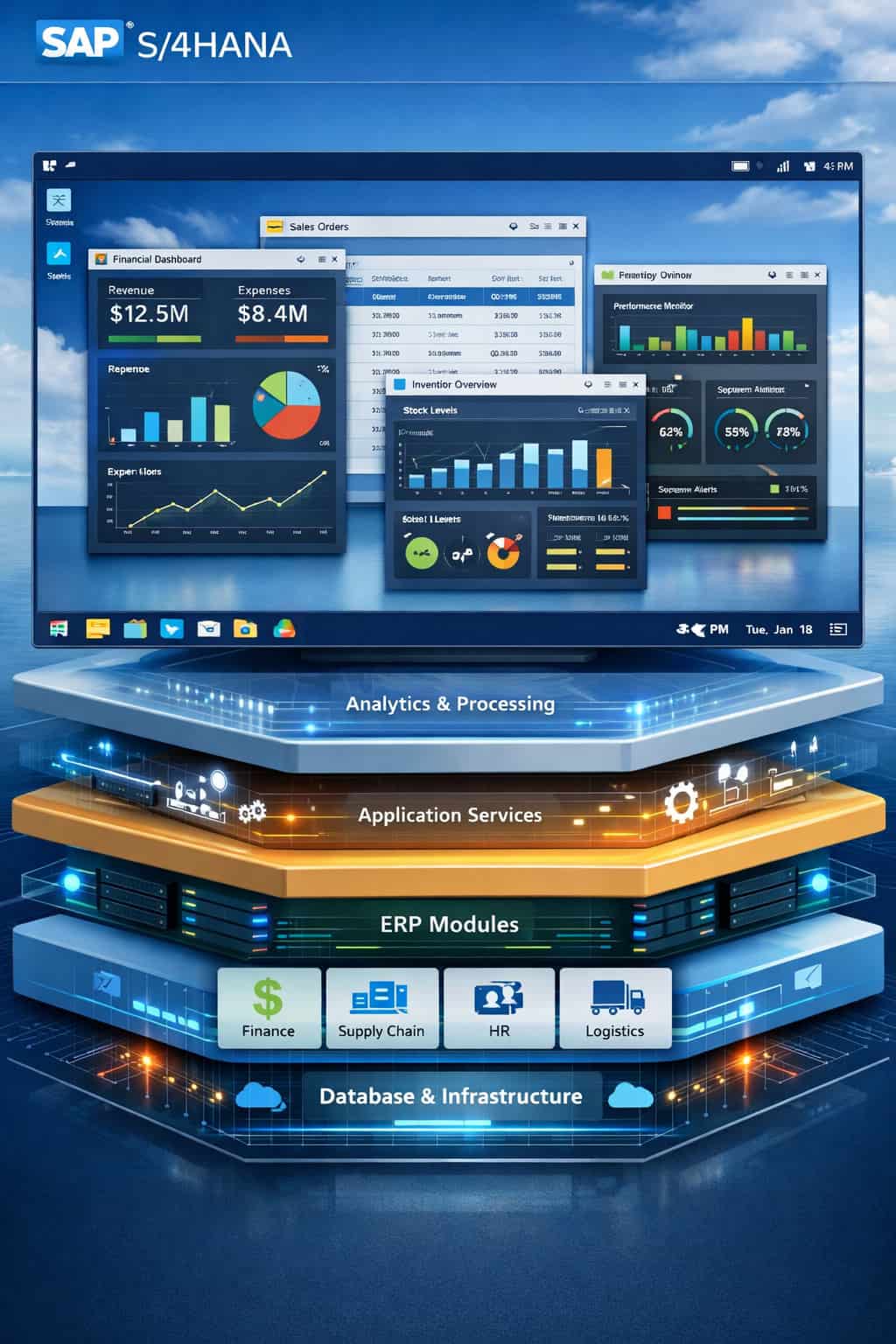
For many professionals, the Windows operating system is the most familiar example of how complex technology is made usable. It quietly coordinates hardware, applications, security, and updates so users can focus on getting work done. Learning about S4HANA services becomes far more intuitive.

At the enterprise level, S4HANA functions much like Windows does for a PC, it is the foundational platform that keeps business processes running smoothly, securely, and in real time.

S4HANA as the Enterprise Operating System

Windows sits at the center of a computer, managing memory, processors, storage, and application execution. In a similar way, S4HANA operates as the core system for an enterprise. Instead of managing files and programs, it coordinates finance, supply chain, manufacturing, human resources, and analytics within a single digital environment.

Just as users rely on Windows to ensure applications can communicate with hardware, organizations rely on S4HANA services to ensure business functions share consistent, real-time data.

The in-memory architecture of S4HANA is comparable to a highly optimized OS kernel, designed for speed, efficiency, and immediate responsiveness across the entire system.

Managing Resources at Scale

Windows performance depends on how well it allocates CPU cycles, RAM, and disk access among running applications. When the operating system is optimized, everything feels fast and responsive. S4HANA services apply the same principle at an enterprise scale.

S4HANA manages massive data volumes and transaction loads by intelligently distributing processing across system resources. Real-time analytics are embedded directly into operational workflows, much like Windows Task Manager gives visibility into system performance.

Organizations can monitor, adjust, and optimize processes without waiting for overnight batch jobs, ensuring that enterprise operations remain responsive under pressure.

From Desktop to Business Dashboard

One of Windows’ greatest strengths is its familiar user interface, which hides technical complexity behind icons, menus, and workflows that users quickly learn. S4HANA services take a similar approach through modern interfaces.

Instead of forcing users to navigate rigid, legacy screens, S4HANA delivers role-based dashboards tailored to finance teams, operations managers, or executives. This mirrors how Windows presents different tools to different users while running on the same underlying system. The result is an ERP environment that feels less like a technical system and more like a productivity platform.

Security, Updates, and Stability

Windows users expect regular security patches, system updates, and stability improvements without needing to rebuild their computers. S4HANA services deliver the same promise at an organizational level. Built-in security controls, compliance frameworks, and continuous innovation protect enterprise data while allowing systems to evolve.

Updates enhance functionality without disrupting core operations, much like Windows feature releases improve productivity while preserving compatibility. This balance between innovation and stability is what allows enterprises to operate confidently in changing markets.

By viewing S4HANA services through the Windows ecosystem, complex ERP concepts become easier to grasp. S4HANA is not just software, it is the operating system of the modern enterprise, quietly orchestrating resources, users, and data so organizations can run efficiently, securely, and at scale.


The Windows Operating System and How Shadowbans Work

The Windows operating system is one of the most familiar tools in modern computing. It powers millions of computers in homes, schools, and workplaces. Many people use it daily but do not know how it works behind the scenes. At the same time, another topic that affects many online users is the idea of a shadowban, good thing is shadowban explained here. Both subjects seem unrelated, but they share a common theme. They both involve systems running in the background that influence your experience without always being obvious.
What Makes Windows an Essential Operating System?

Windows remains one of the most widely used operating systems in the world. It offers a simple interface that helps users work, play, and manage files with ease. The Start Menu, taskbar, and Windows Explorer allow you to open apps, organize your folders, and customize settings without trouble. These features give Windows its reputation for accessibility.

Another advantage is compatibility. Most software programs are built to work with Windows. Whether you need tools for writing, editing, designing, or gaming, there is usually a version that fits the Windows environment. This makes the system practical for both personal and professional use.

Windows also provides regular updates. These updates improve performance and keep your system secure. You may notice patches that fix bugs, security enhancements that block threats, and new features that make your computer run smoother. These updates run in the background to keep your workstation stable.

Because Windows supports many devices and accessories, it stays flexible. You can plug in printers, cameras, scanners, and other equipment without difficulty. The operating system detects your device and installs basic drivers automatically. This allows you to work faster without complicated setup steps.

Key Features That Make Windows User-Friendly

The Windows experience is built around consistency. No matter which version you use, the layout feels familiar. Here are some features that many users rely on:

1. Start Menu and Search

The Start Menu helps you find your apps quickly. The search feature helps you locate files or settings even if you forget where you saved them.

2. File Explorer

This tool lets you manage folders and documents in a clear structure. You can copy, move, or delete files with simple clicks.

3. Control Panel and Settings

These sections help you customize your device. You can adjust network settings, display options, privacy controls, and more.

4. Task Manager

This feature lets you track your computer’s performance. You can see which programs use the most memory or CPU. You can also close frozen apps safely.

5. Security Tools

Windows includes built-in security features such as Windows Defender. These protect your computer from viruses, malware, and suspicious activity.

What Is a Shadowban and Why Does It Happen?

A shadowban is a type of restriction placed on an account. It usually happens on social media platforms, forums, or gaming communities. When a shadowban occurs, the user can still post or interact normally, but other people cannot see their content. This makes it hard to notice because the system does not show a warning or message. The effect is silent and hidden.

Shadowbans are used to reduce spam, remove harmful activity, or control rule violations. When an account behaves suspiciously, the platform may limit its reach. The user may not receive likes, comments, or visibility even when content is posted regularly.

Common reasons for shadowbans include posting too frequently, using banned words, violating community rules, or triggering the platform’s automated filters. Sometimes, even normal activity may be flagged by mistake. That is why shadowbans can feel confusing for users who follow the rules but still lose engagement.

The biggest challenge is confirmation. Most platforms do not admit that a shadowban exists. This makes users wonder why their content is not performing well. They may think their followers are inactive, but the truth is often that the system is blocking their reach.

How to Tell If You Are Shadowbanned

Detecting a shadowban is not always easy. However, there are signs that may help you figure it out:

  • Your posts stop receiving likes or comments.
  • Your account does not appear in searches.
  • Your content does not appear in hashtags or feeds.
  • New followers stop coming in.
  • Engagement drops even if your content quality stays the same.

You can also ask a friend to search for your posts or look for your account using hashtags. If they cannot see your content, a shadowban may be the cause. Some people use external tools or test accounts to confirm visibility. While these methods are not perfect, they can give you clues.

How to Fix or Avoid a Shadowban

If you think you are shadowbanned, you can take a few steps:

  • Pause activity. Stop posting or commenting for a few days.
  • Review rules. Make sure your content follows the platform’s guidelines.
  • Remove suspicious apps. Third-party tools may trigger bans.
  • Avoid spam behavior. Do not post too often or use repeated hashtags.
  • Report the issue. Some platforms allow you to file a request or appeal.

To avoid future shadowbans, keep your account’s activity natural. Post content at normal intervals, interact with users genuinely, and avoid banned keywords. Patience is also important because shadowbans can take a few days to lift.

Wiki Page Shares Essential Secrets to Know about Windows OS

A well-maintained Wiki page often becomes the go-to source for learning how operating systems evolve, especially versatile platforms like Windows OS. For decades, Windows has shaped personal and professional computing by combining user-friendly design with powerful system controls. People who regularly rely on Wikipedia or any dedicated tech Wiki page understand how crucial it is to stay updated on hidden shortcuts, system features, and configuration tricks that enhance efficiency. Windows OS continues to expand with each version, introducing features that many users overlook despite their incredible potential.

Mastering the Hidden Power of Task Manager

Most users open Task Manager only when an application freezes, but its capabilities extend far beyond force-closing tasks. It provides insights into CPU usage, memory allocation, startup-impact ratings, and performance graphs that reveal bottlenecks in real time.

You can disable unnecessary startup programs instantly, improving boot time without any extra software. Advanced tabs also allow users to monitor GPU performance, which is essential for gaming, design, or heavy multitasking.

A Tool for Diagnostics

Task Manager doubles as a diagnostic assistant, giving you the ability to detect overheating, failing applications, or memory leaks before they cause serious system issues. This level of access mirrors how a detailed Wiki page helps you understand an entire system from top to bottom.

Wiki Page-Level Knowledge

One Windows feature many users overlook is the powerful “God Mode.” By creating a simple folder with a specific string, you unlock an advanced control panel containing more than 200 system settings. This centralized hub allows you to manage administrative tools, display options, storage, indexing, and personalization in one place. Much like information curated on a Wiki page, this feature collects everything essential into a single accessible location.

Another secret is Windows Clipboard History. Pressing Windows + V reveals previously copied text and images, allowing quick retrieval without rewriting or re-copying. Combined with cloud sync, clipboard data travels across your Windows devices seamlessly, boosting productivity whether you’re coding, writing, or designing.

The Magic of Windows Search and PowerToys

Windows Search has developed into a smart, fast, and context-aware tool. Users can search for apps, documents, emails, settings, and even web results in milliseconds. Typing system commands directly into the search bar is far quicker than navigating menus manually.

Microsoft PowerToys, an optional but highly recommended suite, elevates Windows to a professional-grade workspace. Tools like FancyZones for window snapping, PowerRename for batch file editing, and Quick Accent for multilingual typing can transform your workflow instantly. Many professionals discover these features the same way they find hidden OS information, often through a trusted online knowledge hub.

Security Layers and File Systems Most Users Ignore

Windows comes equipped with advanced security features such as BitLocker, Windows Hello, Controlled Folder Access, and built-in ransomware protection. These tools ensure that your data stays safe even without third-party software.

NTFS, the default file system, supports file permissions, encryption, compression, and recovery logs, features often unknown to casual users. Understanding them can drastically improve how you manage sensitive files and optimize overall system reliability.

Why Windows Small Businesses Are Discovering the Power of Instagram Email Scraping

Small business owner smiling while using a blurred Windows laptop in bright workspace.

Small businesses that have Windows desktops for their day-to-day operations have an ongoing need for finding more customers in an efficient way.

As the competition for digital outreach grows, the need for time-saving tools like an Instagram email scraper arises.

These tools help teams automatically gather contact information available in the public domain, turn that data into leads, and significantly streamline the outreach process.

The benefits for Windows users in particular are quite significant given the platform’s flexibility and winning productive ecosystem.

Streamlining the Lead Collection for Windows Workflows

Businesses operating on Windows typically utilize Excel, Outlook, and certain CRM systems.

We can import demarcated sets of public business emails into the aforementioned programs seamlessly thanks to the Instagram email scraper.

Teams can work more efficiently because they don’t have to manually enter data, switch between different systems, and can easily get the information they need.

Most businesses, in fact, have grown comfortable working in a given Windows environment.

Compatibility With Windows Productivity Tools

Small teams value the Windows operating system mainly due to its accessibility and reliability and because many users run multiple applications simultaneously.

Email lists that need to be cleaned and sorted and need to have specific rows filtered can be easily stored and manipulated with Excel, and users do not have to worry about filter and memory settings of applications within a web browser, which gives them more control regarding how to thoroughly clean, categorize, and verify the data.

Furthermore, the Windows operating system simplifies data organization through straightforward workflows, thereby minimizing the risk of data loss.

Windows Email Clients and Faster Outreach

Companies that have Outlook and that have desktop email applications especially benefit when it comes to sending emails. Because Windows is integrated with the email client at the operating system level, it enhances efficiency in sending emails.

Sending emails with ease enhances organization. With a well-organized data set, owners and marketers can email their audience; organized emails become especially useful to personalize emails, which helps in communicating messages that increase interest.


ALSO READ: Wiki Page Shares Essential Secrets to Know about Windows OS


Cost Saving for Small Teams

Small companies tend to have very limited budgets, which is why Windows systems are very cost-effective and offer excellent long-term value.

An Instagram email scraper provides companies with leads for free and eliminates the need for expensive marketing agencies and large ads.

By extracting information from the internet’s freely accessible public data, small teams can spend less and get real leads without data exhaustion. You can use the saved money to enhance product features and improve customer support.

Ideal for Shops, Freelancers, and Service Providers

A large number of independent users are reliant on Windows laptops or desktops for their editing, writing, and design, as well as for the day-to-day management of their clients’ projects.

With an email scraping tool, these users can quickly obtain lists of leads from Instagram, and they are also able to do so by specifying their ideal customer from an industry or location, niche, or even follower count.

This allows them to concentrate their efforts on targeted outreach and not on broad, wasted marketing. For freelancers and small shops, this kind of marketing haste is very helpful when it comes to the sustainability of their customer base.

Windows Services Startup Management and Troubleshooting

Windows Services are background processes that handle essential system operations, application functions, and network tasks. They typically run without direct user interaction, starting automatically with the operating system or when needed by an application. Understanding how to manage and troubleshoot services is crucial for maintaining system stability and performance.

Windows Services are the hidden workforce of the operating system, enabling features and keeping applications running smoothly. By understanding how to configure their startup types and troubleshoot common issues, users can optimize performance without compromising system stability or security.

https://win10.guru

The Role of Windows Task Manager

The Windows Task Manager is a built-in utility that acts as the control center for monitoring and managing the system’s processes, performance, and applications. It is essential for troubleshooting system slowdowns, identifying resource-heavy programs, and managing startup behavior.

1. Monitoring System Performance
Provides real-time data on CPU, memory, disk, network, and GPU usage.

Helps identify performance bottlenecks by showing which processes consume the most resources.

2. Managing Running Applications and Processes
Displays all active applications and background processes.

Allows users to end unresponsive tasks to restore system stability.

Offers control over process priority and processor affinity for performance tuning.

3. Controlling Startup Programs
Lists applications that automatically launch during Windows startup.

Enables or disables these programs to improve boot speed and reduce resource usage.

4. Viewing and Managing User Sessions
Shows all active user accounts and their resource consumption.

Allows switching, signing off, or ending a session to free resources.

5. Managing Windows Services
Lists system services with their current status (running, stopped, or paused).

Lets administrators start, stop, or restart services without using other tools.

6. Troubleshooting and Security
Detects suspicious or unknown processes that may indicate malware.

Provides the option to locate files or search online for process details.

Assists in diagnosing why the system is slow, unresponsive, or overheating.
https://win10.guru

Windows Task Manager Functions and Advanced Usage

The Windows Task Manager is a powerful built-in utility that provides real-time information about system performance, running processes, and resource usage. While many users only use it to “end a task,” it offers far more advanced features for monitoring, troubleshooting, and optimizing Windows.

https://win10.guru

The Role of the Control Panel and Settings App in Windows

Windows offers two main interfaces for managing system settings: the Control Panel and the Settings app. While both serve the same overarching purpose—configuring the operating system—they differ in design, scope, and intended use. Understanding their roles helps users navigate Windows efficiently and manage their systems effectively.

https://win10.guru

User Account Control and Permissions in Windows

User Account Control (UAC) and permissions are security mechanisms in Windows designed to prevent unauthorized changes to your system. They act as gatekeepers—ensuring that only trusted applications and authorized users can make changes that could affect the operating system or other users.

https://win10.guru

Understanding the Windows Registry and Its Role

The Windows Registry is a critical database that stores configuration settings and options for the Microsoft Windows operating system. It acts like the brain of Windows—keeping track of system preferences, application settings, user profiles, and hardware configurations. Understanding how it works is essential for troubleshooting, customization, and advanced system administration.

https://win10.guru

Windows Updates Benefits Risks and Best Practices

Windows Updates are an essential part of keeping the Windows Operating System secure, stable, and feature-rich. They deliver security patches, performance improvements, and new functionalities—but they can also sometimes cause unexpected problems if not managed properly.

https://win10.guru

𐌢