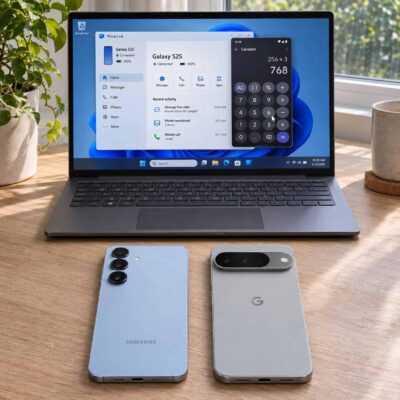
Cell phone comparison on CompareCelular (comparação de celulares no) can help you narrow down your options if you use a Windows 11 PC. A Galaxy S25 and a Pixel 10 can both put your phone notifications, texts, and files within reach. The difference shows up when you want to open a phone app on your desktop or paste something you copied on your phone. Samsung’s Galaxy S25 and S26 Ultra give you more ways to do this through Microsoft Phone Link. Google’s Pixel 9 and Pixel 10 cover everyday tasks like moving files and opening photos. Here’s how the four phones compare when you sit down at your PC.
Phone Link Features on Galaxy and Pixel
All four models can use Phone Link for notifications and texts after you grant the relevant permissions. You can also make and receive calls from the PC after setting up Bluetooth. For a typical workday, that means you can check a delivery text or answer a call without picking up your phone. You can choose which phone alerts appear on the desktop, especially if an app already sends notifications through Windows.
The Galaxy S25 and S26 Ultra also appear on Microsoft’s lists for Phone screen and Apps. Phone screen mirrors the handset so you can navigate it with a mouse and keyboard. Apps lets you open a supported Android app in its own window on the PC. Suppose you need to check an app on your phone while working in a desktop browser; that saves a trip back to the handset. Microsoft’s list for these two features omits the Pixel 9 and Pixel 10.
The Galaxy models can also share a clipboard with Windows through Phone Link. Turn on Cross-device copy and paste under Settings > Features in the PC app. This is useful when you copy an address or a tracking number on your Galaxy and want to paste it directly into a desktop form. Microsoft’s clipboard requirements cover Samsung’s One UI and select other devices, the Pixel 9 and Pixel 10 fall outside that documented support.
File Sharing Works on All Four Models
You can send a downloaded PDF, photo, or other local file in either direction through Phone Link. On the PC, right-click the file, choose Share, and select Phone Link. On the phone, open the share menu and choose Link to Windows – Send to PC. If you share a cloud-only item, you share a link to its cloud location. Download the file first if you need the recipient device to receive a copy.
Quick Share is another option for nearby transfers on all four phones. Install Google’s Quick Share app on a compatible Windows PC. For a Samsung PC, Google directs users to Samsung’s version in the Microsoft Store. Turn on Bluetooth and make sure both devices are connected to the internet. Quick Share is convenient when you already have the file open and want to send it without browsing the phone’s folders from Windows.
For a large batch of files or when wireless sharing isn’t available, use a USB data cable. Unlock the phone, tap the USB notification, and select File transfer. Open the phone in File Explorer and copy the files you need. The same wired method works for the Galaxy and Pixel models in this comparison.
Photo Access in Windows 11
Both brands can show photos and videos stored on the phone in Windows 11 File Explorer. Microsoft is moving photo access from Phone Link to File Explorer on Windows 11. On your PC, open Settings > Bluetooth & devices > Mobile devices > Manage devices and turn on Show mobile device in File Explorer. Select the phone in the sidebar and open its camera folder. Copy the images to a PC folder when you need local copies for editing or uploading. You can also open other folders, such as Downloads, or copy a batch of screenshots into a report. If you manage two linked phones, File Explorer displays only one at a time.
File Explorer is handy for a photo you just took. For older pictures you’ve backed up, you can sign in to Google Photos in your PC browser with the same Google account. Google Photos backup is available on both Galaxy and Pixel, so you can use that workflow regardless of which phone you choose.
Setting Up Galaxy and Pixel
On the Galaxy S25 or S26 Ultra, look for Link to Windows under Settings > Connected devices. On the Pixel 9 or Pixel 10, download Microsoft’s Link to Windows app from Google Play. From there, the setup is similar. Connect your phone and PC to the same Wi-Fi network, open Phone Link on Windows, choose Android, and sign in with the same Microsoft account on both devices. Scan the QR code and grant the permissions for the features you want. If the phone’s folders are missing, check the File Explorer toggle separately in Windows settings.
Which Is the Better Fit?
Choose the Galaxy S25 or S26 Ultra if you expect to open phone apps or share your clipboard while working at your PC. If you mainly need alerts, texts, wireless transfers, and a way to grab photos, the Pixel 9 and Pixel 10 already handle those jobs. For someone who spends the day moving between a mobile app and a desktop document, Galaxy’s extra controls can save time with each switch.