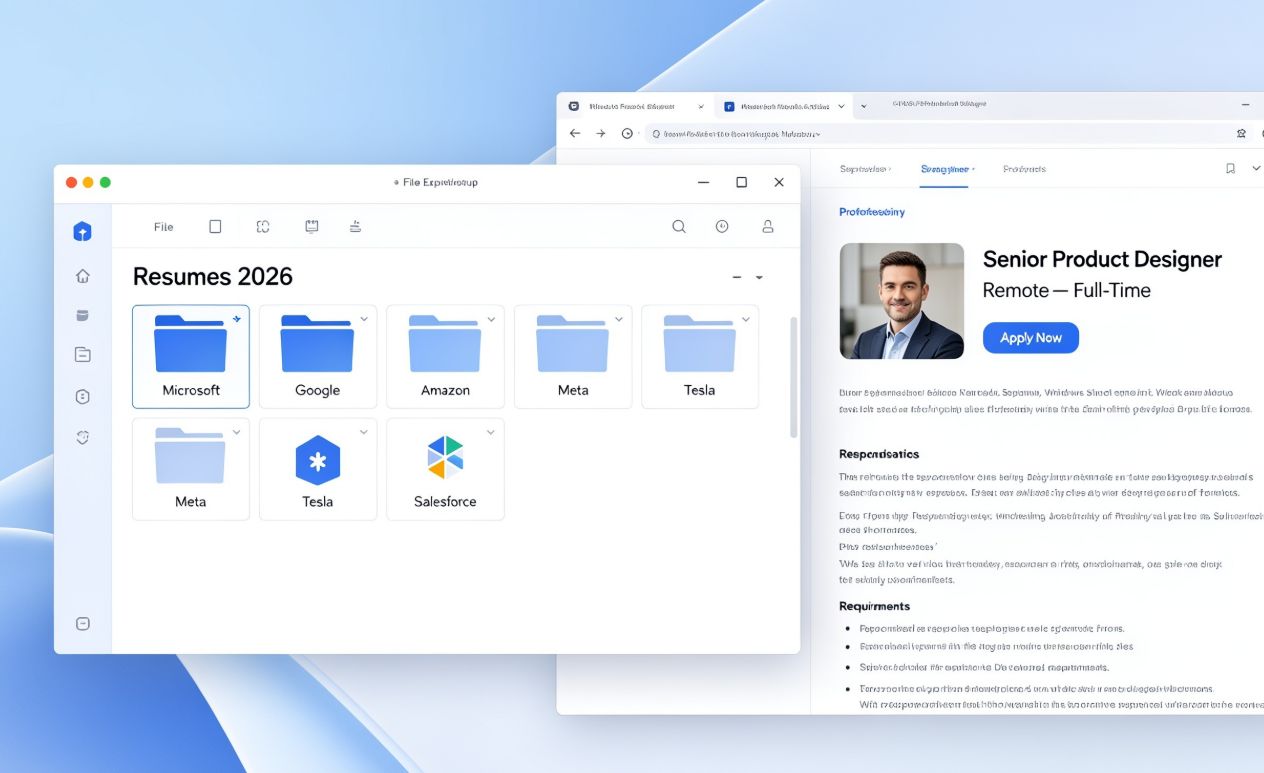
Most large employers now filter applications through software before a person ever opens a resume. Jobscan notes that recruiters rely on applicant tracking systems to search resumes for the exact keywords tied to a job posting, and only resumes containing those terms tend to surface for review. That fact changes how job seekers should approach applications, especially on a Windows PC where resumes often end up scattered across desktop folders, email attachments, and downloads.
The friction is familiar to anyone who has applied to more than a handful of jobs in a week. One PDF sits in Downloads, an older version lives in OneDrive, and three browser tabs compare job descriptions to a document last edited months ago. Switching between File Explorer, a word processor, and a browser just to update a bullet point wastes time better spent applying. A browser-based AI tailored resume workflow addresses this by keeping the editing, comparison, and export steps in one place instead of spread across separate applications.
Why Generic Resumes Fall Short
Research from TailorForge indicates that a large share of resumes at bigger companies never reach a human reviewer, largely because of keyword and formatting mismatches with the posting. Career services at the Tulane School of Professional Advancement advise spelling out industry acronyms and matching the specific language used in a listing, since tracking software often cannot infer that two similar terms mean the same thing. Findings published by Resumly suggest only about a third of applicants consistently customize their resumes for each role, even though doing so appears to improve response rates. That gap is where a structured workflow helps.
Step 1: Organize Resume Files Before You Start
Before tailoring anything, it helps to consolidate resume files into a single, clearly labeled folder rather than letting versions pile up across the desktop and downloads folder. A simple structure works well:
- One master resume file that holds every skill, project, and job history entry
- A dedicated subfolder for each application, named after the company and role
- A naming convention such as LastName_Role_Company.pdf so files are easy to locate later
Windows File Explorer supports this without extra software. Setting up the structure once saves repeated searching later, and it keeps a clean, unedited master copy safe if a tailored version needs to be undone.
Step 2: Use a Browser-Based Tailoring Workflow
With files organized, the next step is comparing the master resume against a specific job description and adjusting the wording to match. Guidance from Jobscan recommends checking uploaded resumes against the actual posting to identify missing skills, phrasing gaps, and formatting issues that could confuse parsing software. Doing this manually for every application is tedious, which is why many job seekers now use browser-based tools that accept a resume and a job listing side by side and suggest edits, without requiring a separate desktop program.
This fits naturally into a Windows setup because most of the process already happens in a browser anyway, from browsing job boards to submitting applications through online portals. Keeping the tailoring step in the same environment cuts down on back-and-forth between apps that tends to introduce errors, like pasting an outdated paragraph or forgetting which file was most recently updated. If several browser tabs and programs end up running at once and the PC starts to lag, opening the Windows Task Manager makes it easy to see what is slowing things down and close anything unresponsive before continuing.
Step 3: Review for ATS Compatibility
Not every formatting choice that looks good on screen translates well once a resume enters an applicant tracking system. Research summarized by Jobscan shows that some systems struggle to parse charts, tables, or unusual layouts, and different platforms interpret the same resume inconsistently. A report from the California State University, Long Beach Legal Resource Center notes that many companies now use AI-driven systems that rank applicants by context rather than keyword matching alone, which makes clear formatting more important than visual flair. Sticking to standard section headers and a straightforward chronological layout reduces the risk of a resume being misread before anyone sees it.
Step 4: Save and Export the Final PDF
Once the tailored content is finalized, exporting to PDF is usually the safest format for preserving layout, though some systems parse Word documents more reliably. Testing referenced by Jobscan found that certain tracking systems handle .docx files more accurately than PDFs, so it is worth checking the posting for a stated preference. On Windows, saving directly from a browser tool or word processor as PDF keeps fonts and spacing intact across devices, which matters if a recruiter opens the file on a different operating system entirely.
After exporting, moving the finished file into its labeled subfolder closes the loop on the organizational system from step one, making it simple to reference exactly which version was sent to which employer later.
Bringing the Workflow Together
None of these steps require specialized software beyond what most Windows users already have: File Explorer, a browser, and a word processor. What changes is the sequence and the discipline of keeping files organized rather than letting them accumulate. As tracking systems continue ranking candidates by context rather than simple keyword counts, per the CSU Long Beach Legal Resource Center, resumes that clearly reflect the language of a job posting are likely to remain the ones that reach a human reviewer. A consistent, browser-centered routine for organizing, customizing, and exporting resumes turns a scattered process into something repeatable, which matters more the more often a person applies.